Accessibility design
Email built around how you actually work.
BlindBox is shaped for blind and low-vision mail—from orientation and confirmation to attachments, privacy, and languages.
- Built for blind and low-vision mail workflows—not retrofitted to claim accessibility checkboxes
- Read aloud and auto-read for partial sight without turning on a screen reader
- Quick jump to landmarks so navigation becomes easy
- Voice action commands for reading, replies, navigation, and compose controls
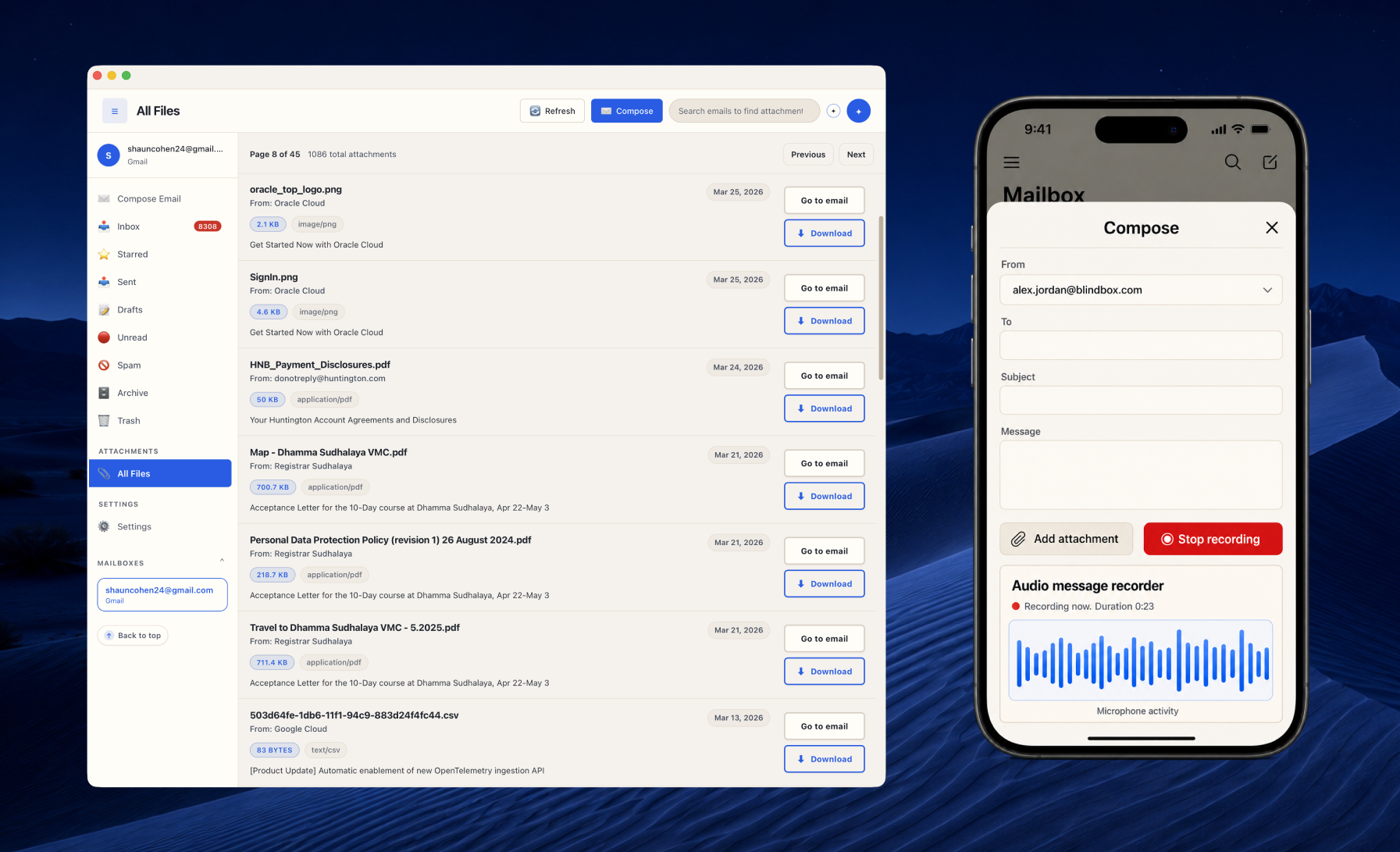
Structure, privacy, spoken confirmation, attachment understanding, and comfort controls—together, not as add-ons.
What you get
The capabilities that make everyday mail actually usable.
Each one solves a different daily friction: knowing where you are, hearing mail without a screen reader, understanding attachments, confirming actions, dictating clean mail, and working by voice or file list.
Capability 1 of 7. Orientation
A mental map you can trust
Stable regions, skip links, and a built-in Navigation Guide give VoiceOver, TalkBack, NVDA, and JAWS a clear floor plan—so you navigate with a map rather than trial and error.
- Landmarks
- Skip links
- Navigation Guide
Capability 2 of 7. Read aloud
Hear the message—no screen reader required
Low vision does not always mean VoiceOver or NVDA. Read aloud speaks the open message with your device’s text-to-speech so you can listen instead of strain. Tap Read aloud on demand, turn on auto-read when a message opens, and set slow, normal, or fast speed in Accessibility settings.
- On-demand
- Auto-read
- Speech speed
Capability 3 of 7. Insight
Attachments that speak for themselves
When a PDF is a wall of pages or a photo has no alt text, Insight turns it into a summary, description, or transcript you can hear immediately.
- Summaries
- Image descriptions
- Transcripts
Capability 4 of 7. Confirmation
Silence is never the answer
Live regions and optional tones report sends, moves, refreshes, and unread counts the moment they change—so you keep moving without second-guessing.
- Aria-live
- Audio cues
- Unread count
Capability 5 of 7. AI dictation
Speak freely. Send polished mail.
On-device AI turns speech into email-ready text—cleaning punctuation and filler while keeping your meaning and tone. Dictate recipients the same way: say the addresses you want, list several at once, and BlindBox adds them for you.
- Speech cleanup
- Recipient dictation
Capability 6 of 7. Files & voice
Pull files out of threads. Reply by voice.
The Files tab gathers attachments across mail into one list. In compose, record an audio message when speaking is faster or clearer than typing.
- Files tab
- Voice compose
Capability 7 of 7. Voice control
Say the next action
Voice action commands let you control an open message or composer by speaking: read aloud, reply, archive, delete, move to the next message, or send email. They are separate from dictation, so speech can either control the app or write your message.
- Message actions
- Compose controls
- Separate from dictation
Design philosophy
If a flow is hard with a screen reader, it is not finished.
We design for blind and visually impaired people first. Visual polish arrives after the flow is speakable, keyboardable, and recoverable. Comfort settings refine the experience; they never stand in for real assistive-technology support.
- Ship only after manual passes with VoiceOver, TalkBack, NVDA, and JAWS—not scanners alone.
- Desktop keystrokes and mobile gestures solve the same mail jobs, not two different products.
- Important status changes are communicated in words and optional sounds—not color alone.
- Feedback from the blind community decides what we improve next.
Structure before decoration
Headings, landmarks, and reading order are decided before color and layout. Assistive technology should always have a reliable path through the app.
Recovery is a feature
Focus memory, compose traps, and a spoken Guide exist so a wrong move does not strand you. Getting back should take seconds, not a restart.
Visual content is still your mail
PDFs, images, and scans belong in the conversation. The Files tab finds them; Insight makes them understandable when the file itself is not readable.
Low vision is not an afterthought
High-contrast themes, larger text and controls, read aloud with adjustable speed, reduced motion, and custom colors sit beside screen-reader work—so partial sight has real options, not a single “accessible” skin.
Languages
Use BlindBox in the language you think in.
Menus, settings, and spoken UI strings ship in 18 languages. Choose on login or in Accessibility settings; the preference saves to your account and syncs across desktop and mobile.
- EnglishEnglish
- العربيةArabic RTL
- 中文(简体)Chinese (Simplified)
- NederlandsDutch
- FrançaisFrench
- DeutschGerman
- ΕλληνικάGreek
- עבריתHebrew RTL
- हिन्दीHindi
- Bahasa IndonesiaIndonesian
- ItalianoItalian
- 日本語Japanese
- 한국어Korean
- PortuguêsPortuguese
- РусскийRussian
- EspañolSpanish
- ภาษาไทยThai
- Tiếng ViệtVietnamese
Written to be spoken
Translated labels are crafted for clear speech output—so assistive technology hears natural phrasing in your locale, not awkward word-for-word UI English.
Arabic and Hebrew with RTL layout
Arabic and Hebrew reverse navigation, lists, and reading order so the interface matches right-to-left expectations end to end.
One choice, every device
Set your language once. It follows your BlindBox profile from the login screen through Accessibility settings on desktop and mobile.
Accessibility at a glance
The full accessibility toolkit, at a glance.
From screen-reader structure and shortcuts to read aloud, Insight, voice compose, Files, and personalization—each item below owns a different job. Mail providers and pricing are on Features.
| Number | Capability | What it does |
|---|---|---|
| Screen-Reader Optimized | Named regions, skip patterns, and live updates so your AT always knows the folder, list, and message you are in—on a desk or a phone. | |
| Predictable Focus & Navigation | Focus travels inbox → folders → messages → compose on consistent paths. Arrow keys, rotors, and touch exploration follow the same map. | |
| Clear Feedback & State Changes | Spoken results and optional tones close the loop after send, move, refresh, or error—so progress is audible, not implied. | |
| Blind Sight Mode | One toggle for a private working surface. Capabilities stay available with your screen reader; the visual layer steps aside. | |
| Keyboard & Shortcut Access | Desktop keystrokes for refresh, compose, numbered folders, search, and help — built for high-volume mail, not menu hunting. | |
| VoiceOver & TalkBack Workflows | Mobile actions and settings are shaped for rotors, swipe exploration, and local context menus—not labels glued onto a visual-only UI. | |
| Audio Message Compose | Record, preview, and attach voice clips straight from the composer. No extra programs or plugins needed. | |
| Voice Action Commands | Use the microphone to control an open message or composer with spoken actions such as read aloud, reply, archive, delete, next message, and send email. Commands remain separate from dictation. | |
| Files Tab | Every attachment across your mail in one list—by name and type—so you find invoices and photos without digging through threads. | |
| Read Aloud for Low Vision | Hear messages with your device’s text-to-speech—on demand from message actions or automatically when a message opens. Slow, normal, and fast speeds, without turning on VoiceOver, TalkBack, NVDA, or JAWS. | |
| Reading Comfort & Personalization | High-contrast and warm themes, larger controls, font scaling, reduced motion, plain-text reading, and 18 interface languages including Arabic and Hebrew RTL. | |
| Insight AI Summaries & Transcripts | On-demand image descriptions, PDF summaries, and scan transcripts turn visual attachments into content your screen reader can read aloud. |
Support
Our greatest feature is that we are a support-first company.
We are dedicated to helping you succeed. When something is unclear, broken, or not working the way you need, reach out—we answer, listen, and work to help.
Real help from real people
Email or call us directly. We are here.
You are not filling out a ticket into a void. Unlike other email software companies, you can actually talk to an empathetic human being. At BlindBox, support is part of the product - not a separate department. Tell us what went wrong or what you need, and we will do our best to help.
- Email us and expect a human reply.
- Call when you want to talk it through live.
- Accessibility questions and workflow feedback are always welcome.
- Organizations can get dedicated onboarding help when rolling out seats.
Devices and recovery
Desktop power, mobile reach, and ways back when you get lost.
Shortcuts and extra desktop controls for deep sessions. VoiceOver and TalkBack carry the phone. Focus memory, the Guide, and synced settings keep you oriented across all platforms.
iOS with VoiceOver
A full mail client for VoiceOver users—rotors, swipe exploration, and structured compose—not a read-only companion to desktop.
Android with TalkBack
TalkBack and local context menus expose triage and compose actions clearly when you are away from a keyboard.
Desktop when volume matters
Multi-pane layout, numbered folder jumps, and Blind Sight for deep sessions on macOS and Windows.
Settings that travel with you
Language, comfort, and accessibility preferences save to your BlindBox profile and follow you across desktop and mobile.
Desktop shortcuts
High-volume mail without menu diving.
Desktop shortcuts cover refresh, compose, folders, Blind Sight, and more. On phones, the same jobs use VoiceOver, TalkBack, and touch exploration.
Ctrl/Cmd + R
Desktop: refresh your inbox instantly.
Ctrl/Cmd + N
Desktop: start a new message right away.
Ctrl/Cmd + 1-4
Desktop: quickly switch between your main folders.
F1 or ?
Desktop: get help with keyboard shortcuts anytime.
Arrow Keys + Enter
Desktop: move through messages and open conversations with ease.
Focus memory that sticks
Return to a list and land where you left off. Compose and dialogs trap focus so background chrome cannot steal the cursor.
Low-vision tools on your terms
Warm and high-contrast themes, thicker borders, larger controls, and font scaling up to 200%—adjust what you see without changing how AT navigates.
Listen when reading on screen is hard
Read aloud uses your device’s text-to-speech, not a screen reader. Hear long threads hands-free, rest your eyes, or follow mail in bright light—auto-read on open or Read aloud from message actions, with slow, normal, or fast speed.
Compose & feedback
Every action should answer you.
A quiet UI after a keystroke or tap is an accessibility failure. BlindBox treats spoken results, progress updates, and optional audio tones as part of the control—not decoration.
Send and move confirmation
Archive, delete, move, and send all report the outcome before you continue—so the next action starts from certainty.
Loading and refresh state
Long operations speak progress instead of leaving you on a silent spinner. You know whether to wait or retry.
Errors in plain language
Network, auth, and quota failures explain what went wrong in words you can hear—not a color change on an icon.
Optional audio layer
Success and error tones, navigation clicks, and Blind Sight switch chimes add a non-speech channel when you want it.
Accessibility by design
Ready for mail that keeps up with you?
Blind Sight, Insight, voice compose, shortcuts, comfort themes, and reviewed interface copy.
- Blind Sight
- Read aloud
- Auto-read
- Audio cues
- Focus memory
- Navigation Guide
- Insight
- Files tab
- Voice compose
- On-device dictation
- Low vision themes
- Keyboard shortcuts
- Native-language QA roadmap
Get started
Try it with your assistive technology
The fastest way to judge the fit is with your own accounts, screen reader, and daily mail workflow.